
 By BECKY RUTHERFORD
Los Alamos
What’s the best way to spot a phishing email? Phishing emails spoof legitimate sites and services, but usually if you take the time to check the sender email and any links in the email, you’ll notice that they are not legitimate links or domains.
In the latest phishing scam, reported by researcher Thread Reader, a phishing scam did an all too realistic imitation of a Google Security Alert, by exploiting a vulnerability he found in their infrastructure (Note, Google has since addressed this issue).
 Image of fake Google security alert from Thread Reader
There’s a lot going on here, and the scammer pulled some interesting tricks to make this so realistic. This came through as a valid, signed email from Google, and passed the DKIM (What is DKIM? DKIM is an email authentication protocol that uses public/private key cryptography to verify identity of an email sender and ensure the message hasn’t been tampered with during transit) signature check, and Gmail displayed it without warnings – it even put it in the same conversation as other, legitimate security alerts. Yikes!
So how did they pull this off? The attacker first created a unique domain and associated email address with a Google account, using the format “me@domain.com”, and used this to create a Google account. Then, they made a Google OAuth app and named it using the full content of the phishing email — in this case, an alert about a subpoena. To hide this, the message contained a lot of whitespace to make it look like it ended and to separate it from Google’s notification about having access to the attacker’s me@domain email address.
 Image from Thread Reader
What is a Google OAuth app? This is a Google app that uses the OAuth 2.0 protocol to securely authorize access to a user’s Google account information without directly sharing the user’s password or other sensitive data. This allows third-party apps to access resources like Gmail, Drive, or Calendar, on behalf of a user, with their explicit permission. An example of this is say you schedule an appointment to get your haircut, and you get a pop-up asking if you’d like to allow access to Google calendar to add it to your calendar.
So when the attacker granted access to the OAth account to the “me@domain.com” email address, the address would receive the fake subpoena notification. Since Google generated this security alert email, it’s signed with a valid DKIM key. The attacker then just has to forward the alert to their victims. The “from” email address (no-reply@google) was spoofed, which would have been apparent if examining the headers, but since DKIM only checks the message and headers it still showed up as signed and valid in the user’s inbox. Admirable skills here, but again, yikes!
Because they named their Google account “me@”, Google shows the message was sent to “me” at the top, unless you click the “to me” field to show details and expand the information.
 Image of phishing email from Thread Reader
A closer look reveals that the mailed-by header shows a different address than Google’s actual mailing infrastructure (prviateemail.com) would use, and the recipient is actually the me@address the attacker had created, not the user.
These email gymnastics aside, the email also contained a link to a fake support portal, with a landing page that looks nearly a duplicate of the real page.
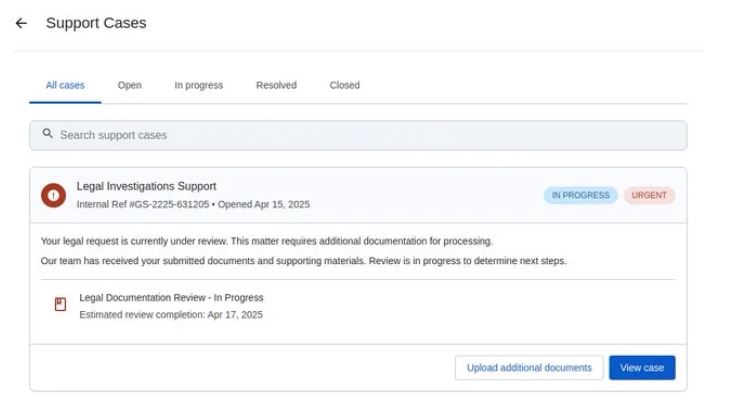 Image of fake Google support portal from Thread Runner
The only clue here that gives it away is that it is on “sites.google.com” as opposed to the actual support portal at “accounts.google.com”. Sites is a legacy Google service allowing users to host their webpages on a Google domain.
Johnson believes the purpose of this was to collect credentials from victims to compromise their account.
That is a lot to go through for a phishing email, and it is important to note that this went to “Thread Runner”, aka Nick Johnson, a developer working for a blockchain company. As far as targets go, a dev for a blockchain company is pretty high value. Whoever was behind these emails knew what they were doing and pulled out all the stops. As a standard Google user, are you likely to get a high quality phish like this? Maybe not, but it never hurts to be aware this stuff is out there!
What are some takeaways here?
- Just because an email LOOKS legitimate, don’t assume it is. If something seems off take the extra time to think and examine the message before you interact with it.
- If you are suspicious of an email, look at the email and get more info. In Gmail you can do this quickly while you have the email opened, just click on the 3 dots in the upper right corner of the email and select “Show original” and it will show you the email headers, see below. This gives you a lot more information so you can see where the email actually came from, and more.
 Image of email headers
- Before you click any links, verify they are legitimate by hovering over them to preview the actual link, again be careful not to actually click it!
- Put some kind of multi-factor authentication on all of your accounts, so that if you do accidentally compromise an account they won’t be able to login unless you give them the MFA code! I highly recommend MFA on everything that matters to you online, either via an authenticator app, physical key, or via text message.
Be careful out there, if something seems off it probably is!